
Docs / The growth loop
Google Search Console & Analytics
Connect Google once and Wavefront grounds your entire content program in real performance data: what you rank for (Search Console) and what people actually read and do on your site (Google Analytics 4). The connection is read-only, takes under a minute, and powers the performance widgets, the strategy generator, and the weekly Growth Review.
What you get:
- Striking distance: queries ranking just off page one (positions 5-20), your highest-leverage optimization targets
- Content decay: pages losing clicks compared to the prior period, flagged as refresh candidates
- Top pages: sessions, conversions, and users per page from GA4, so you see what content actually drives results
- Data-grounded strategy: the SEO strategy generator and the weekly Growth Review read this data instead of guessing
Connecting Google
- Go to Settings and find the Google Search Console + Analytics card.
- Click Connect Google and sign in with a Google account that has access to your Search Console property and/or GA4 property.
- Approve the consent screen. We request two read-only scopes: Search Console (
webmasters.readonly) and Analytics (analytics.readonly).
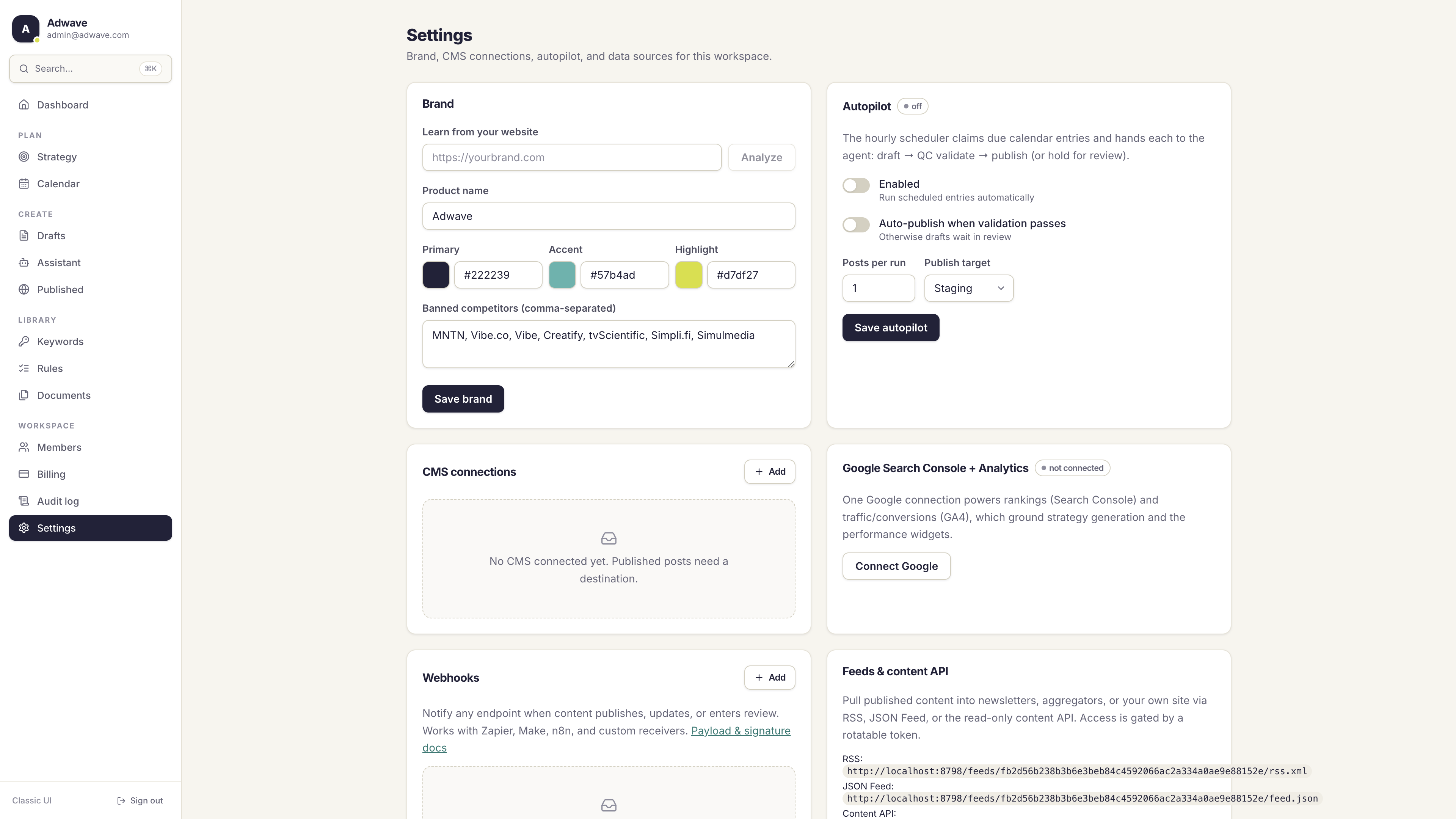
That's it. One sign-in covers both products:
- We auto-select your first verified Search Console property and your first GA4 property. Having only one of the two is fine; whichever is available gets connected.
- We immediately backfill roughly the last 90 days of history, so your widgets and reports are useful right away instead of starting from zero.
- From then on, fresh data is pulled automatically every night.
Connecting requires the admin or owner role in your workspace.
What data we pull (and what we don't)
Everything is read-only and aggregated. We never see or store anything about individual visitors.
| Source | What we store, per day |
|---|---|
| Search Console | Query, page, clicks, impressions, click-through rate, average position |
| Google Analytics 4 | Page, sessions, engaged sessions, conversions (key events), total users |
A few notes on freshness:
- Google finalizes Search Console data with a 2-3 day delay, so the most recent days always trail slightly. This is a Google-side lag, not a sync issue.
- GA4 data settles within about 48 hours; we pull each day once it's stable.
- Your Google credential (an offline refresh token) is stored encrypted per workspace and is never exposed through any API, tool, or export.
Where the data shows up
Open any strategy and scroll to the performance section. Three widgets summarize the signal:
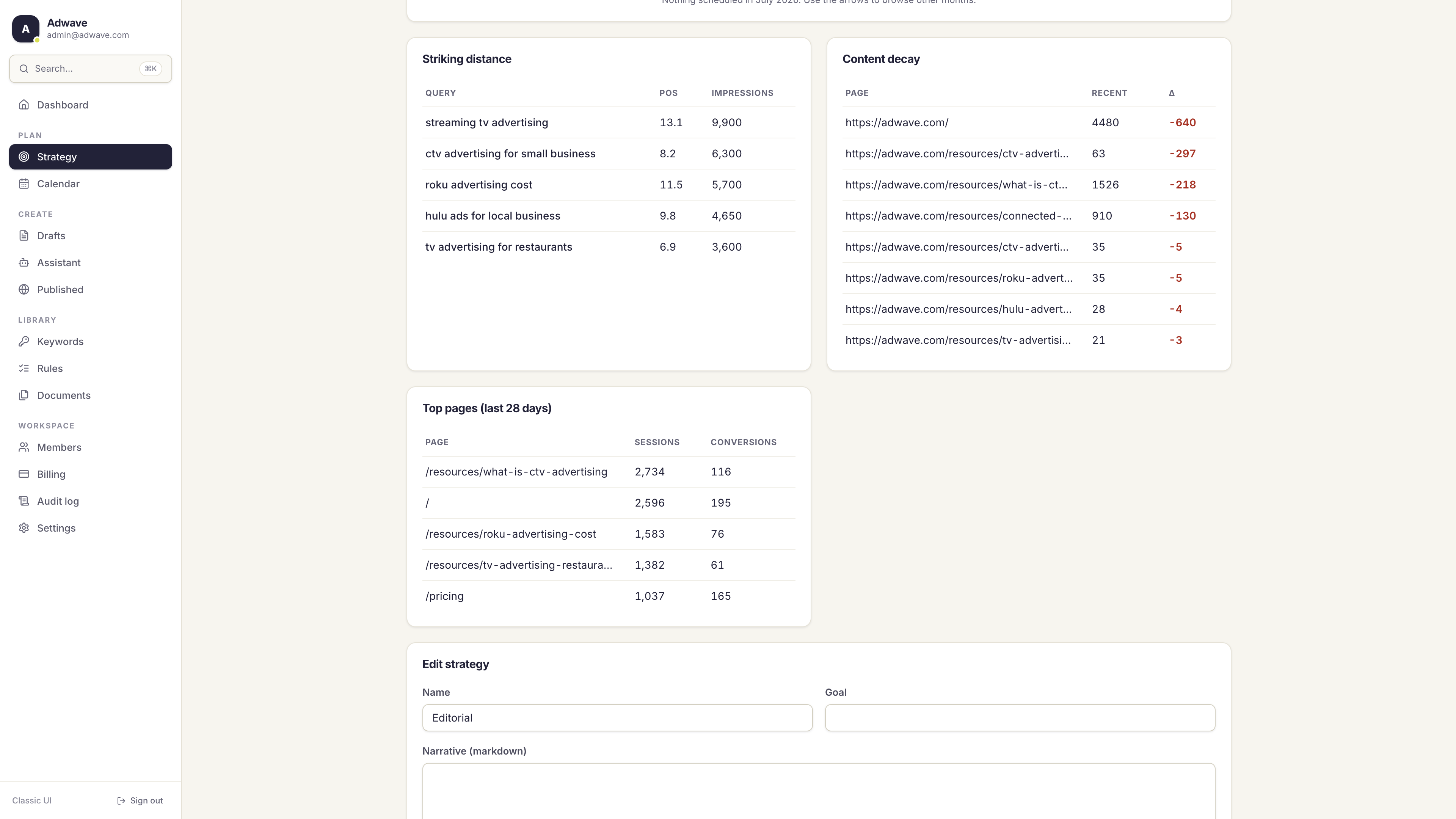
- Striking distance lists queries ranking in positions 5-20 with real impressions. Strengthening the content behind these queries is usually the fastest way to grow organic traffic.
- Content decay lists pages whose clicks dropped versus the prior window. These are your refresh candidates.
- Top pages shows GA4 sessions and conversions per page over the last 28 days, so ranking wins can be checked against actual traffic and results.
The weekly Growth Review
Every Monday, Wavefront turns this data into action automatically. The Growth Review reads your striking-distance queries and decaying pages (plus the quarterly stat-refresh queue) and proposes a small, capped set of concrete content actions: refresh this page, strengthen that topic, publish the new quarter's statistics post.
Proposals land in your review inbox on the dashboard as calendar ideas, each carrying the evidence that justified it. Nothing is written or published until you approve. You can also trigger a review on demand with the Run growth review now button.
Strategy generation
When you generate an SEO strategy ("Plan with the assistant" on any strategy page), the planner is grounded in your top queries and striking-distance data, so the topics it proposes build on where you already have traction.
Using the data from your own agent
Everything above is also available through the MCP tool surface, so a connected agent (Cursor, Claude, or any MCP client) can analyze your performance and act on it:
| Tool | What it returns |
|---|---|
get_site_performance | Top queries by clicks over the last N days (default 28) |
get_striking_distance | Queries ranking just off page one (default positions 5-20) |
get_content_decay | Pages losing clicks between the prior and recent windows |
get_top_pages | GA4 sessions, conversions, and users per page |
run_growth_review | Run the Growth Review now and get proposals in the review inbox |
Admins additionally get start_google_connect, finish_google_connect, and set_google_connection to manage the connection itself, including setting an explicit Search Console property or GA4 property when the auto-selected one isn't the right fit.
Common questions answered
Which property gets connected if my account has several? The first verified Search Console property and the first GA4 property visible to the account. If that's not the one you want, reconnect with an account scoped to the right property, or have an admin set the exact property with the set_google_connection tool from a connected agent.
Can I connect only Search Console, or only Analytics? Yes. The connection works with either one alone. Widgets that depend on the missing product simply prompt you to connect it.
Can Wavefront change anything in my Google account? No. Both scopes are read-only. We can't edit your Search Console settings, your GA4 configuration, or anything else in your Google account.
Why are my widgets empty right after connecting? The 90-day backfill usually fills them within a minute. If they stay empty, the connected account may not have access to a verified Search Console property or a GA4 property with traffic, or your site may simply be too new to have Search Console history yet.
Google didn't return a refresh token when I connected. What now? This happens when the app was authorized before and Google skips the consent screen. Remove the app's access at myaccount.google.com/permissions, then click Connect Google again.
How do I reconnect or switch Google accounts? Click the connect button again (it reads Reconnect Google once connected) and sign in with the account you want. The new connection replaces the old one.
Is my data shared across workspaces? No. Metrics and credentials are stored per workspace, and the refresh token is encrypted with a key that never leaves the server.